The University of Montana

Treasure Montana
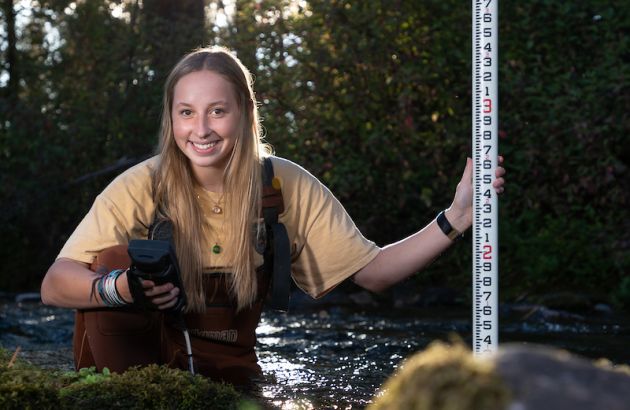
The University of Montana Foundation and the W.A. Franke College of Forestry and Conservation announce the launch of "Treasure Montana: Cultivating Our Tomorrow," a fundraising campaign to safeguard and sustain Montana’s vibrant landscapes, natural resources and ecosystems. The campaign seeks to inspire philanthropic support for a new building that will serve as Montana’s hub for environment and conservation on the UM campus.

Explore Academics at UM
UM offers a vast array of courses, degrees, minors and majors to help you fulfill your academic and professional goals.
66.5%
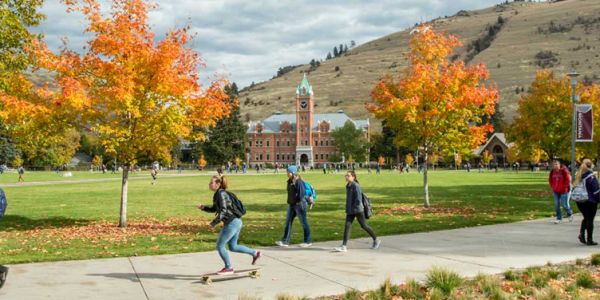
of UM students are Montana residents
29
UM students named Rhodes Scholars, including Kolter Stevenson in 2023